Before an entry
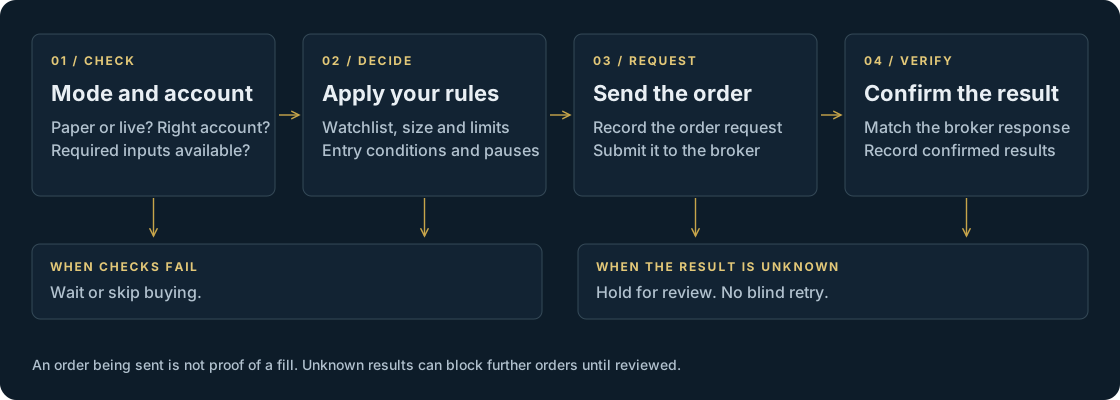
Review the watchlist, trade size, available funds, exposure limits and any entry pause or cooldown. A missing input or failed check can skip a buy.
Go deeper / Trade Desk
Your rules. Your trades. Automated. Here's what that looks like inside the Trade Desk: the checks before an order, the research workflow and the controls worth knowing.
The decision loop
The Trade Desk uses scheduled checks and the settings you choose. A price condition is one input: mode, account readiness, spending limits and other controls can still prevent an order. This is a simplified view; entry and exit paths have different rules.

Review the watchlist, trade size, available funds, exposure limits and any entry pause or cooldown. A missing input or failed check can skip a buy.
The bot records its order request before sending it. Queued, submitted or partially filled orders must not be treated as complete fills.
The desk can hold further orders for review, including exits. Reconcile with the broker's execution record instead of assuming an order failed and retrying it.
Automated checks need your server, data and broker access to be available. Stops cannot guarantee a fill or price. Read the trading logic.
Research is a separate step
The Strategies section organizes research into desks. Review the thesis, risks, source material and age of the analysis. A research score is not a probability of profit or permission to trade.
Choose the research question. Generating analysis may use paid data or AI services.
Check the sources, assumptions and warnings. Refresh old information before relying on it.
Research enrollment is off by default. Review any watchlist change yourself; the bot still applies its trading checks.
Desk names show research topics, not an execution menu. Options execution is disabled in the current beta. Backtests and paper results are hypothetical and may omit important live conditions. AI research can be wrong.
How the parts connect
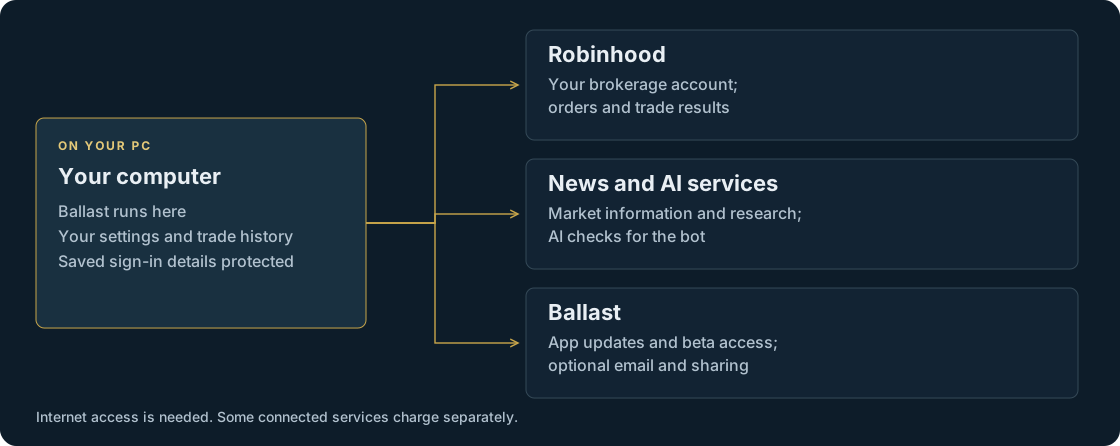
The Trade Desk and its trading records stay on your own server. Broker requests, market data and configured AI features use outside services. Your investment money stays with your broker.

AI features can send selected research, holdings or trading-plan context to the provider. See the privacy details and limits.
Controls worth knowing
Learn these before using real money. Pausing new buying and stopping all automated trading have different effects.
| Control or state | What it means |
|---|---|
| Paper mode | Simulated money, in a separate record from live trading. Quotes may also be simulated when broker data is unavailable. |
| Live mode | Uses real money after your explicit GO LIVE confirmation, current Terms acceptance and required account and policy checks. |
| Entry pause / loss breaker | Restricts new buying. Exit checks continue when their required inputs and services are available. |
| Crypto cooldown | After a confirmed stop-loss sale, a per-coin cooldown blocks new entries and adds. The default is 48 hours, with paper and live tracked separately. |
| STOP | Halts automated trading, including automatic exits. It is a total halt. |
| Uncertain order | The order needs review against broker evidence. Further orders can be blocked to prevent duplicates. |